WSL2 GUI with Ruby on Rails and Capybara
In all honesty, I found coding on Windows to be a pain in general. Luckily we have WSL2 for Windows that allows us to have a nice unix based environment to work with and develop our programs on. I found this to be more of a pleasure to work with than running a virtual machine on Windows. Mainly, I still use Windows for my personal computers since I also game on the side, but with WSL it makes things easier on the development side of things and not have to worry about going through the windows side of things to setup what you need to run.
The big question will be, what if you need test something out like system and feature specs in Rails that uses Selenium. We’ll need access to Chrome in our environment to run those tests otherwise, they’d just fail in the terminal since WSL2 currently does not support GUI. Luckily, we can setup linux on windows with a desktop environment by using Window’s RDP.
Installation
Note: I’m going to assume that you already setup Ruby on Rails via rbenv or RVM.
You’re going to need to make sure you have ChromeDriver and Chrome installed on your WSL2 environment then Xfce4 and XRDP.
Installing Chrome
First install Google Chrome on WSL2
sudo apt-get update
sudo apt-get install -y curl unzip xvfb libxi6 libgconf-2-4
wget https://dl.google.com/linux/direct/google-chrome-stable_current_amd64.deb
sudo apt install ./google-chrome-stable_current_amd64.deb
Make sure what version of Chrome you have
google-chrome --version
Install ChromeDriver
- make sure you replace
86.0.4240.22with the version of Chromedriver that your google-chrome version is using - you can check the Google Chrome version to Google Chromedriver to use via the current releases download section
wget https://chromedriver.storage.googleapis.com/86.0.4240.22/chromedriver_linux64.zip
unzip chromedriver_linux64.zip
sudo mv chromedriver /usr/bin/chromedriver
sudo chown root:root /usr/bin/chromedriver
sudo chmod +x /usr/bin/chromedriver
Check that chromedriver works and that you are using the right Chromedriver (/usr/bin/chromedriver)
chromedriver --version
which chromedriver
Setup WSL with Desktop via RDP
Install Xfce4, Xrdp, and set port to 3390 (3389 is generally already used by another process in WSL)
sudo apt update && sudo apt -y upgrade
sudo apt -y install xfce4
sudo apt-get install xrdp
sudo cp /etc/xrdp/xrdp.ini /etc/xrdp/xrdp.ini.bak
sudo sed -i 's/3389/3390/g' /etc/xrdp/xrdp.ini
sudo sed -i 's/max_bpp=32/#max_bpp=32\nmax_bpp=128/g' /etc/xrdp/xrdp.ini
sudo sed -i 's/xserverbpp=24/#xserverbpp=24\nxserverbpp=128/g' /etc/xrdp/xrdp.ini
sudo /etc/init.d/xrdp start
Connect to RDP on localhost:3390, login and you’re in!
Just make sure that sudo /etc/init.d/xrdp start is ran before you try to connect otherwise that service is down and you won’t be able to RDP into it!
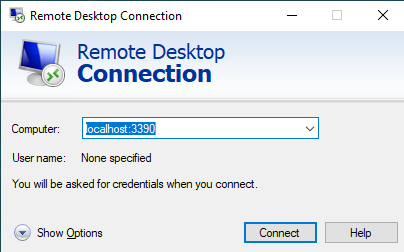
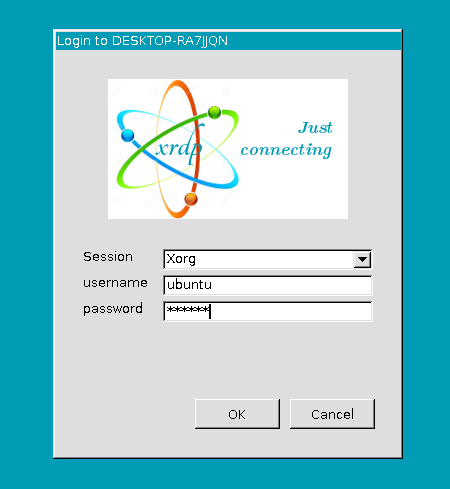
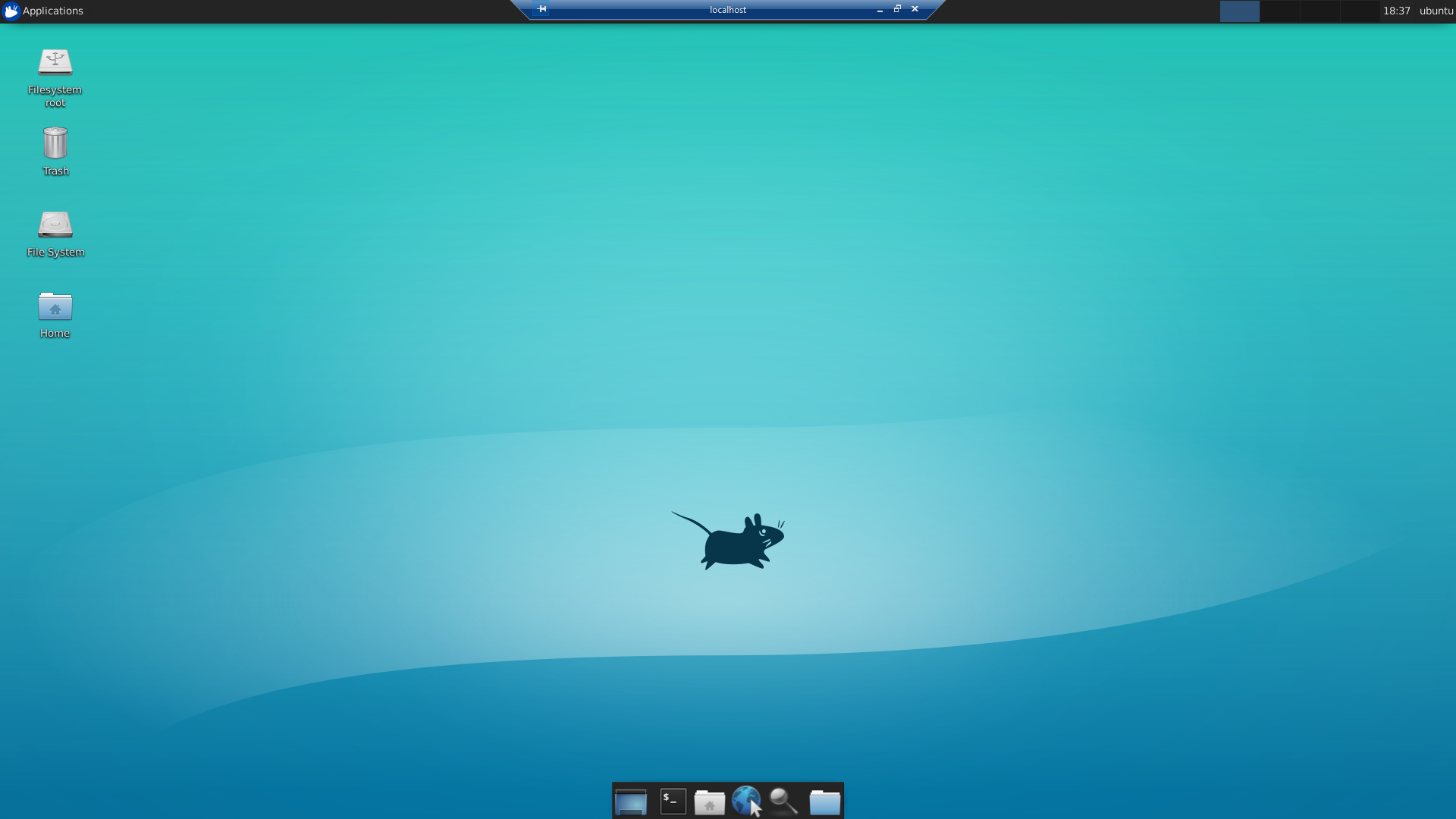
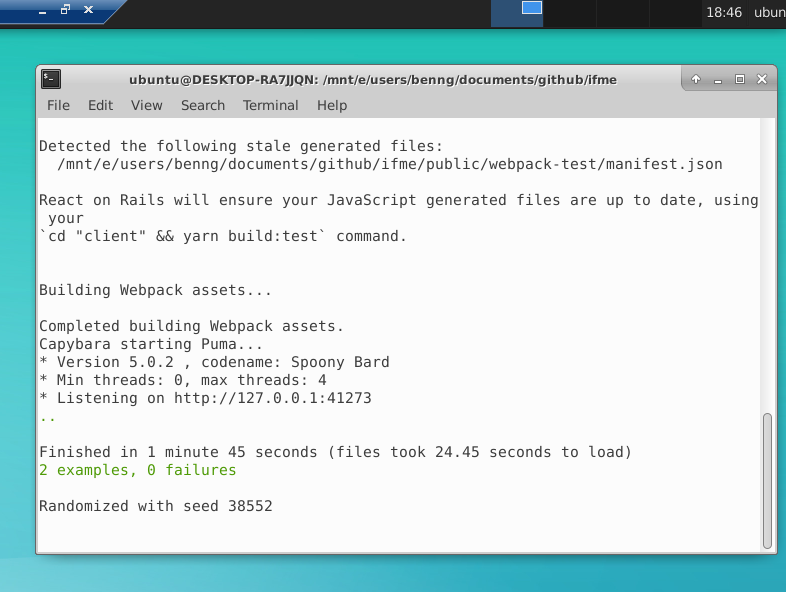
You can now open up the terminal in the RDP, cd to your project folder, and then run rspec on your feature/system specs and they won’t fail with Chromium error this time!
Sources
Thanks to Greg Brisebois and Robin Kretzschmar on their posts on how to setup Chromedriver and RDP for WSL2.
Extra Notes
I’m using WSL2 running off of Ubuntu 18.04 in case anyone is curious on what environment I’m using for my linux instance that I set this up with.
Generally for everything else, I just use the Ubuntu terminal (or if you have Windows terminal for multiple tabs that’s even better!) to test everything else that can be done in the command line, but if I want to run all of my tests that requires selenium, I’ll just remote connect to my WSL environment, open up a new terminal, and run the tests there.